
MDT Console
A web dashboard for your Microsoft Deployment Toolkit server. Watch every Windows install as it happens, read the logs in plain language, and keep your Windows images up to date by themselves.
- PriceFreecode is on GitHub
- Runs onWindowsyour MDT server, in plain PowerShell
- Setup1 scriptfinds your deployment share by itself
- AccessPort 9900on your local network, password protected
What you get
One place for deployment engineers to watch installs, read logs and look after Windows images.
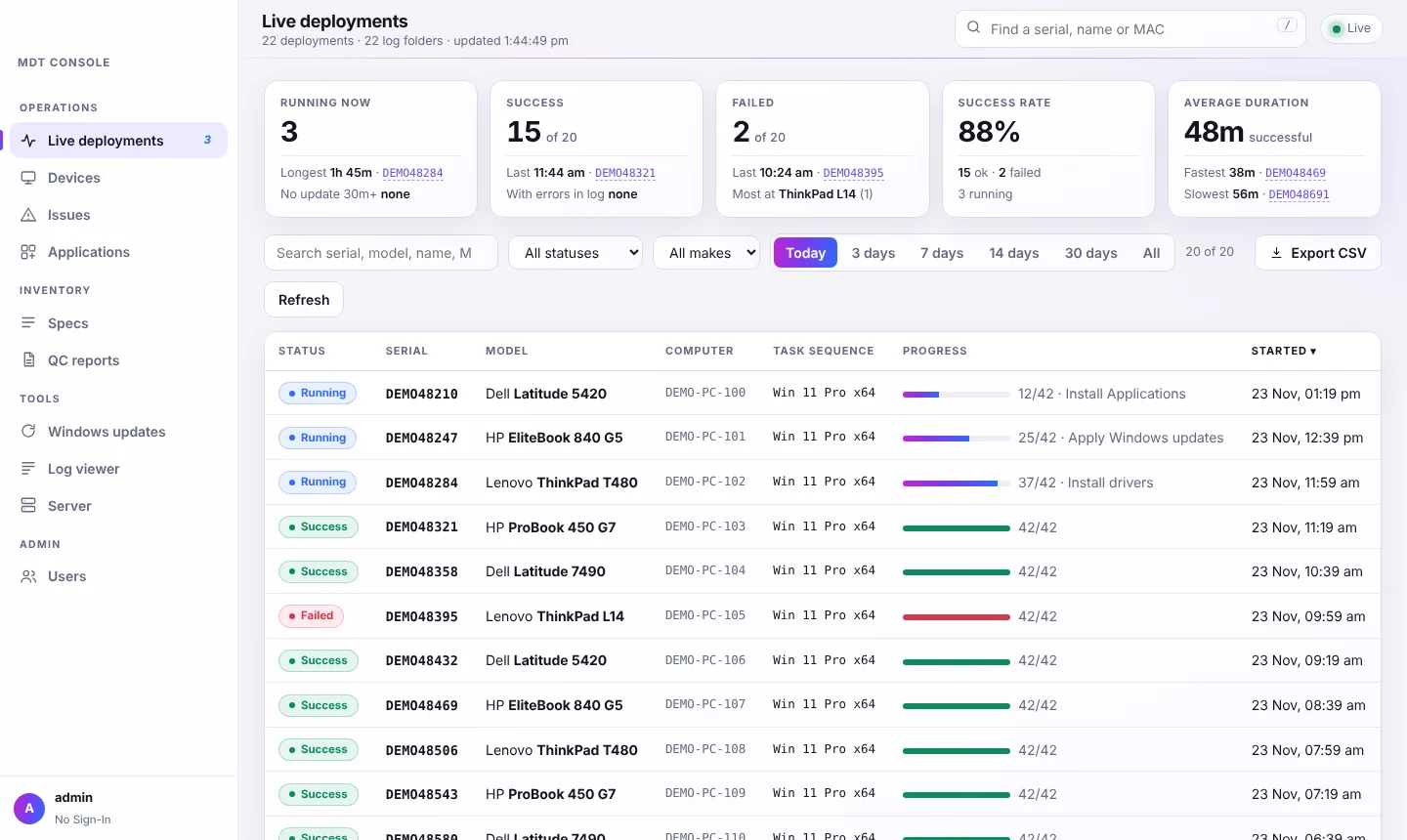
Live deployments
See what is running, what finished and what failed, with progress for each machine and its serial number and model.
Logs you can read
Problems are explained in plain words and steps are grouped. The raw log is one click away.
Windows updates, kept current
A nightly job adds the latest monthly and .NET updates to your Windows 10 and 11 images, and keeps a change log of every patch.
Server health
CPU, memory, disks, network and the devices connected to your deployment share, live.
Device reports
An optional collector records hardware and health details at the end of each build, for quality-check reports.
Safe sign-in
Salted password hashes, lockout after repeated wrong tries, and separate admin and viewer roles.
See it in action
Screenshots use demo data.
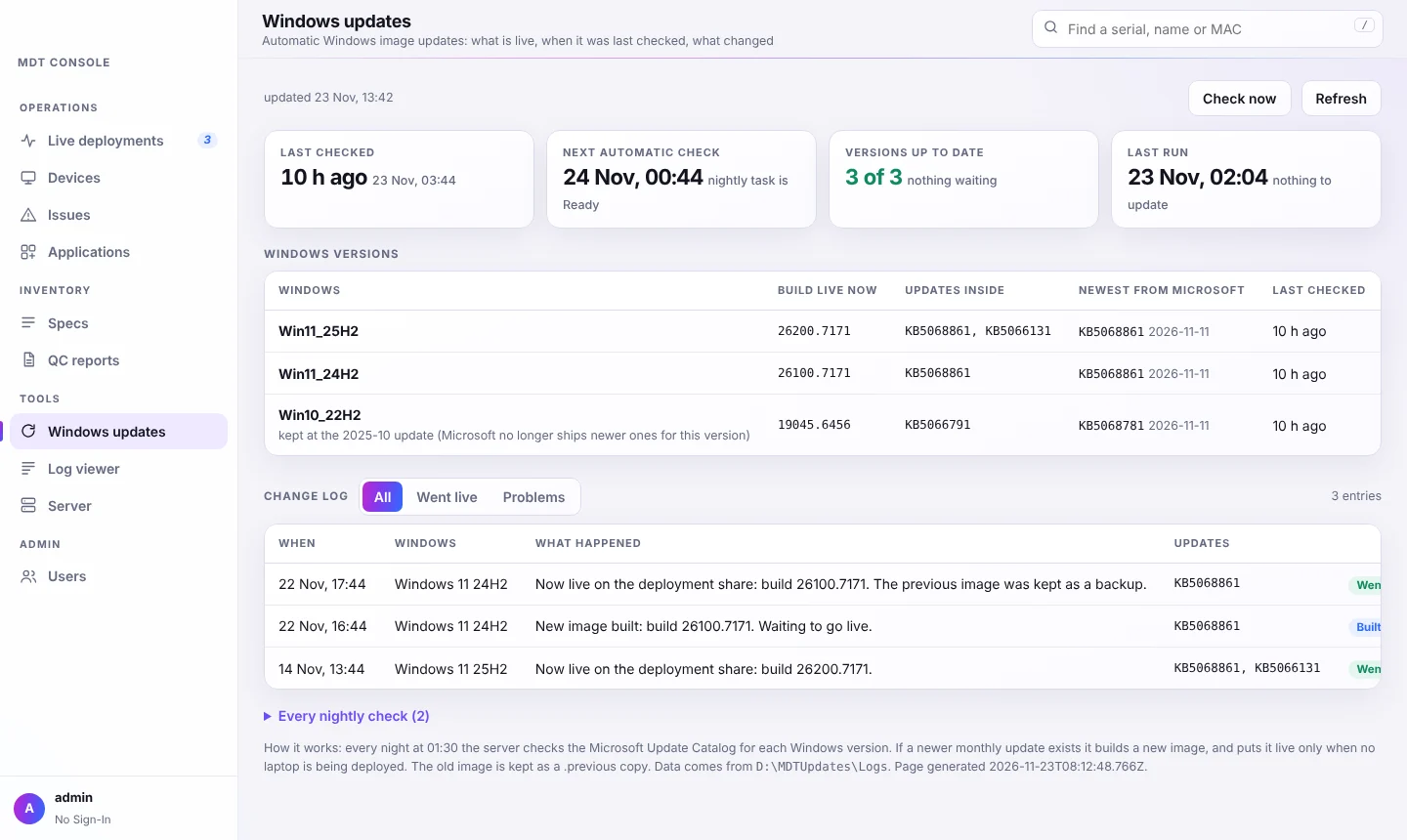
Windows updatesWhich build is live, what is inside it and what changed. 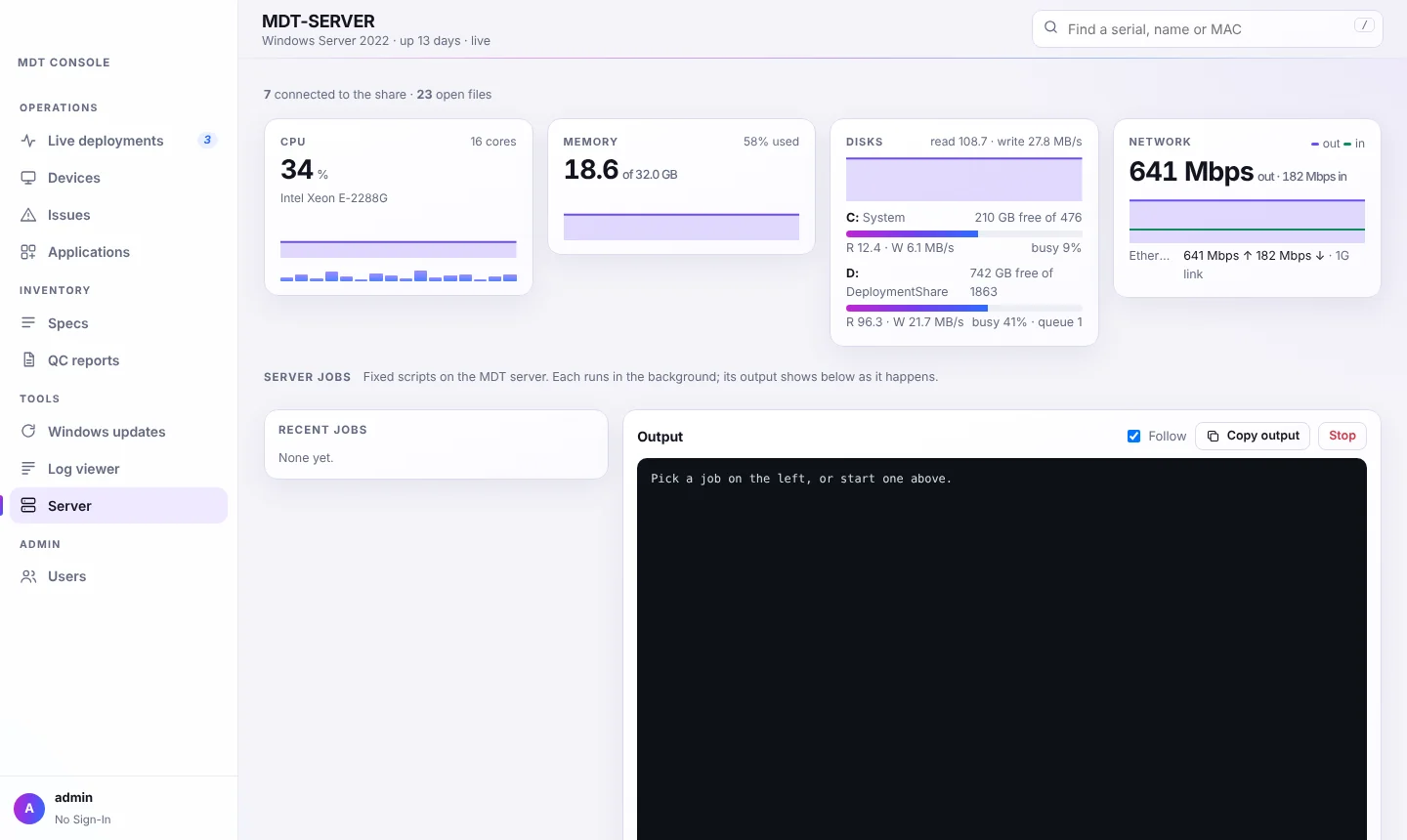
Server healthLoad, disks, network and the machines using your share.
Windows images that update themselves
Built-in updater for Windows 10 and Windows 11 install images, so new laptops are not built on last year's patches.
Checks every night
Looks in the Microsoft Update Catalog for the newest monthly and .NET updates.
Builds a new image
Adds the updates to a copy of your install image and writes a log of the run.
Goes live when it is quiet
The new image replaces the old one only when no machine is being deployed.
Keeps a way back
The previous image is kept as a backup, and the change log shows every patch applied.
Also included: a script that fetches a fresh Windows 10 or 11 download link from Microsoft's own pages and unpacks the ISO, a helper that fetches DISM without a full ADK install, and a helper that creates the MDT operating system and task sequence for you.
How to install
Run these on the MDT server. The setup script asks for administrator approval by itself.
git clone https://github.com/sreekanthvp7/microsoft-deployment-toolkit-console.git
cd microsoft-deployment-toolkit-console\dashboard
.\Setup.cmdNo git on the server? Download the files as a ZIP, unpack them, and run Setup.cmd from the dashboard folder.
Copy it to the server
Use the commands above, or the ZIP, on the server that runs MDT.
Run the setup
It finds your deployment share, opens the port for your local network, starts the dashboard at every boot and asks you to set a password.
Open the dashboard
Browse to
http://your-server:9900from any computer on your network and sign in.Turn on the updater
Optional. Copy the sample settings, set your folders, run it once by hand, then schedule it nightly.
You need Windows Server or Windows 10/11 with MDT and a deployment share, and PowerShell 5.1 (already part of Windows). The image updater needs about 40 GB of free working space and internet access. The default folders D:\DeploymentShare and D:\MDTUpdates are examples: change them in the settings files. Read the full install guide on GitHub.
Use it safely
The console shows your deployment data and can run jobs on the server. Please read these before installing.
- Keep port 9900 on your local network. Do not forward it from your router.
- To reach it from outside, publish it through Cloudflare Tunnel with Access, so people sign in over https first.
- It is locked until you set a password. Five wrong tries lock that address for 15 minutes, and the lock doubles on each repeat.
- Give staff who only watch the viewer role, and keep admin for the people who run jobs.
- Never share the sign-in file, logs or state files. They are different on every server.
- This is an unofficial community project. It is not made or endorsed by Microsoft. Microsoft, Windows and Deployment Toolkit belong to their owners. INFOWEBS is independent. Provided free, as is, without warranty.
Want us to set it up for you?
We can install it on your MDT server, secure the access, and keep your Windows images up to date.